Configuring NAT for Proxmox containers
Proxmox is a practical Linux virtualization environment for businesses that need virtualization on small servers, although it can also be used in much larger environments. It is an alternative to OpenStack or managing VMs with XenCenter. Proxmox supports KVM virtual machines and LXC containers (version 3.x used OpenVZ for containers).
Small environments often lack a router capable of managing bridged networks. You may need to configure local networks and let containers or VMs reach external networks. To do that, configure NAT on the Proxmox host and assign an internal IP address to each container or VM.
Step 1: Create a bridge interface on the host
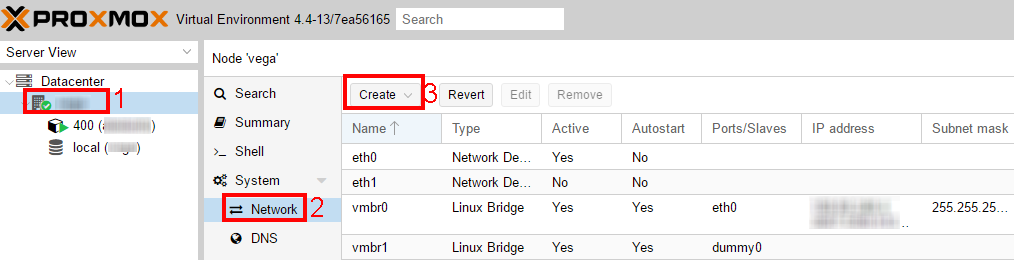
Open the Proxmox administration panel (usually at https://your-ip:8006/), select the host, open Networking, select Create, and choose Linux Bridge.
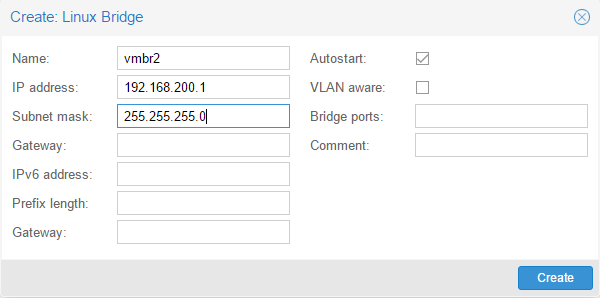
In the dialog, enter an interface name (I chose vmbr2), an IP address to use as the machines' gateway, and a network mask (/24 here, but you can choose another).
After creating the interface, restart the Proxmox server so it applies the configuration. Then add rules to enable NAT. Edit /etc/network/interfaces on the Proxmox server and add the following lines to the vmbr2 section:
auto vmbr2
iface vmbr2 inet static
        address 192.168.200.1
        netmask 255.255.255.0
        bridge_ports none
        bridge_stp off
        bridge_fd 0
        # Add the following lines
        post-up echo 1 > /proc/sys/net/ipv4/ip_forward
        post-up iptables -t nat -A POSTROUTING -s '192.168.200.0/24' -o vmbr0 -j MASQUERADE
        post-down iptables -t nat -D POSTROUTING -s '192.168.200.0/24' -o vmbr0 -j MASQUERADE
The rules above refer to vmbr0, the host interface with the external IP and gateway. In your Proxmox installation, you may need to use eth0 instead.
Restart the machine again to test the configuration. If you prefer, restart only the interface with ifdown vmbr2 and ifup vmbr2.
If NAT does not work, check whether your
FORWARDpolicy is set toDROPby default; this can prevent packet forwarding.
Configuring a container or VM
You can now configure containers and VMs. When creating one, assign an internal IP address and set its gateway to the IP of vmbr2 on the host. Also assign the bridge you created, as shown in the image.
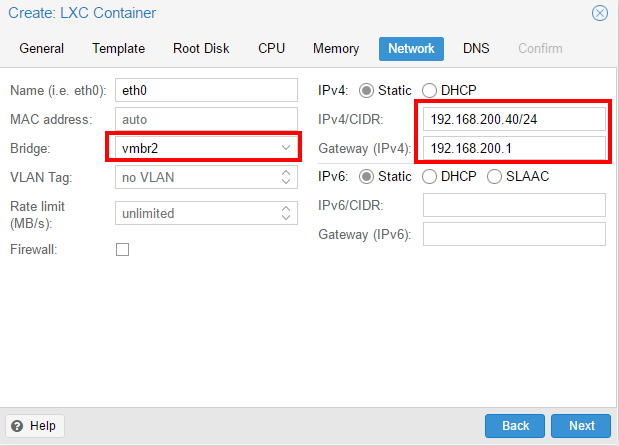
Internal machines can communicate with one another as well. Segment your network and create interfaces as needed for isolation. Proxmox supports VLAN segmentation and direct traffic control through its configuration interface.
Exposing an internal port
To expose a container port, add the following post-up rule to the vmbr2 interface section where you added the MASQUERADE rules:
bash
# Expose port 80 of the container at 192.168.200.40
post-up iptables -t nat -A PREROUTING -p tcp --dport 80 -j DNAT --to-destination 192.168.200.40:80
You can now access the container through port 80 on the host.
Additional information
This configuration does not remove the need for a firewall on the containers and host. Use iptables or the firewall settings available in the Proxmox interface.
Configurations using vmbr0 and vmbr2 are common on OVH, Soyoustart, and Kimsufi dedicated servers.