How to build a fast MCP server using Python
In this guide, we will walk through the steps to create a simple FastMCP server using Python. This server will include a tool that allows you to ping a server to check whether it is running and responding.
Preparing the environment
I'm building this MCP server using FastMCP on Linux, but it should work on Windows and macOS as well. To get started, make sure you have Python 3.8 or later installed on your system. You can check your Python version by running:
bash
uv init mcp
uv venv
source .venv/bin/activate
uv pip install fastmcp[streamable-http]
Creating the MCP server
Replace the contents of mcp/main.py in your project directory and add the following code:
python
import subprocess
import os
import re
from fastmcp import FastMCP

mcp = FastMCP("hello_world", stateless_http=True)

@mcp.tool()
async def ping_server(host: str) -> str:
    """Ping the server to check whether it's running and responding to pings.
    Args:
        host (str): The DNS or host address of the server.
    Returns:
        str: A message indicating the server status.
    """
    # Do a shell command with ping to check if the server is running
    try:
        # Make sure to sanitize host input to avoid command injection
        if not host:
            return "Host is required!"
        if not isinstance(host, str):
            return "Host must be a string!"
        if re.match(r'^[a-zA-Z0-9.-]+$', host) is None:
            return "Invalid host format! Please provide a valid DNS or IP address."

        # Execute the ping command
        # Note: The ping command syntax differs between Windows and Unix-like systems

        # This example will work on Unix-like systems (Linux, macOS)
        is_windows = os.name == 'nt'
        if is_windows:
            output = subprocess.check_output(["ping", "-n", "1", host], stderr=subprocess.STDOUT)
        else:
            output = subprocess.check_output(["ping", "-c", "1", host], stderr=subprocess.STDOUT)

        return "Server is running!"
    except subprocess.CalledProcessError:
        return "Server is not reachable!"


if __name__ == "__main__":
    # Initialize and run the server
    mcp.run(transport='streamable-http', port=7001, path="/mcp/")
Run the MCP server using the following command:
bash
uv run mcp/main.pyNow go to VS Code and add the new MCP server to your workspace. You can do this by clicking on the "Add MCP Server" button in the bottom left corner of the VS Code window, or by using the command palette (Ctrl+Shift+P or Cmd+Shift+P on macOS) and typing "Add MCP Server".
You will be prompted to enter the server address. Enter http://localhost:7001/mcp/ and click "Add". The MCP server should now be added to your workspace.
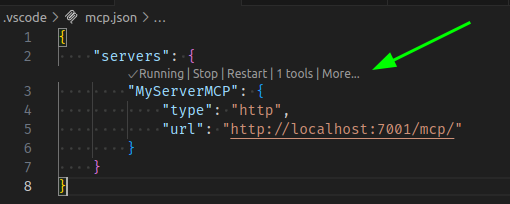
You can also add the server manually by editing the .vscode/mcp.json file in your workspace. Add the following entry to the servers list:
json
{
    "servers": {
        "MyServerMCP": {
            "type": "http",
            "url": "http://localhost:7001/mcp/"
        }
    }
}
If you open the .vscode/mcp.json file, it should look like this, with buttons to start or stop the MCP server:
Testing the MCP server
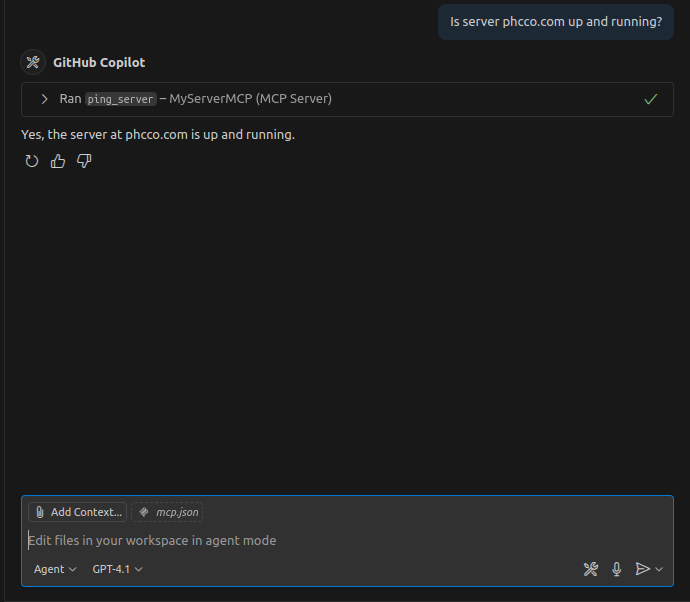
Open your Chat window and select Agent (as of now located below the Chat window), then ask the agent if the server is running. Check the output below:
Conclusion
In this guide, we created a simple FastMCP server using Python that includes a tool to ping a server and check its status. You can extend this server with more tools and functionality as needed. The FastMCP framework makes it easy to build and deploy MCP servers.